
Weply can automatically send leads from your live chat directly into your Pipedrive account. When a visitor submits their details through the chat, a new Person is created in Pipedrive, including their contact information and any additional fields you choose to include.
This guide walks you through everything needed to get the connection set up.
How it works
Weply connects to Pipedrive via the Persons API, authenticated with your personal API token. The endpoint follows this format:
https://[your-subdomain].pipedrive.com/api/v1/persons?api_token=[your-token]
Step 1: Find your API token
Your subdomain is the part before.pipedrive.comin your browser's address bar when you're logged in — for example,yourcompany.pipedrive.com. You'll need this alongside your API token.
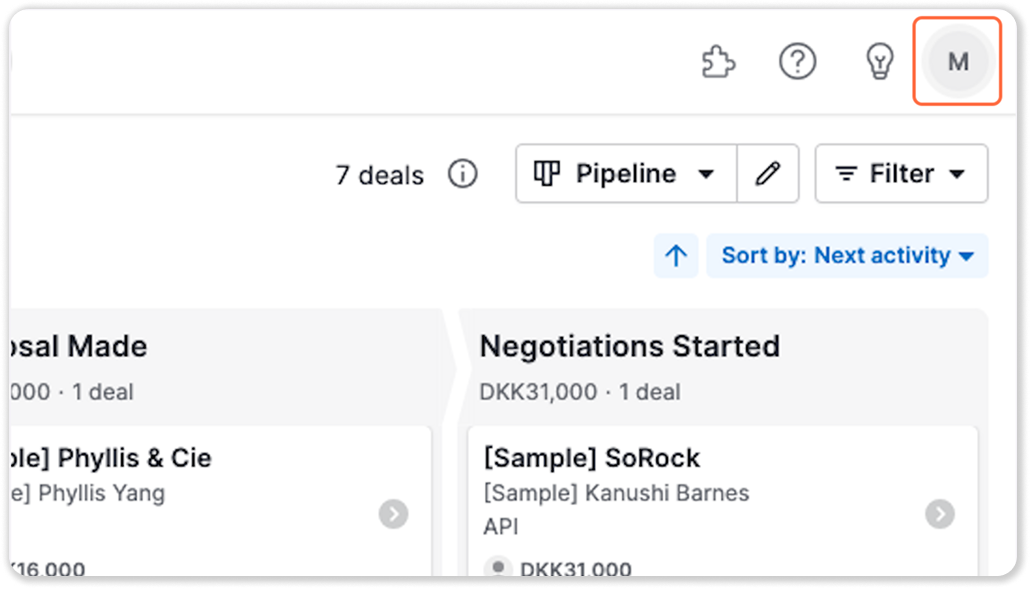
1. Log in to Pipedrive and click your profile icon in the top-right corner
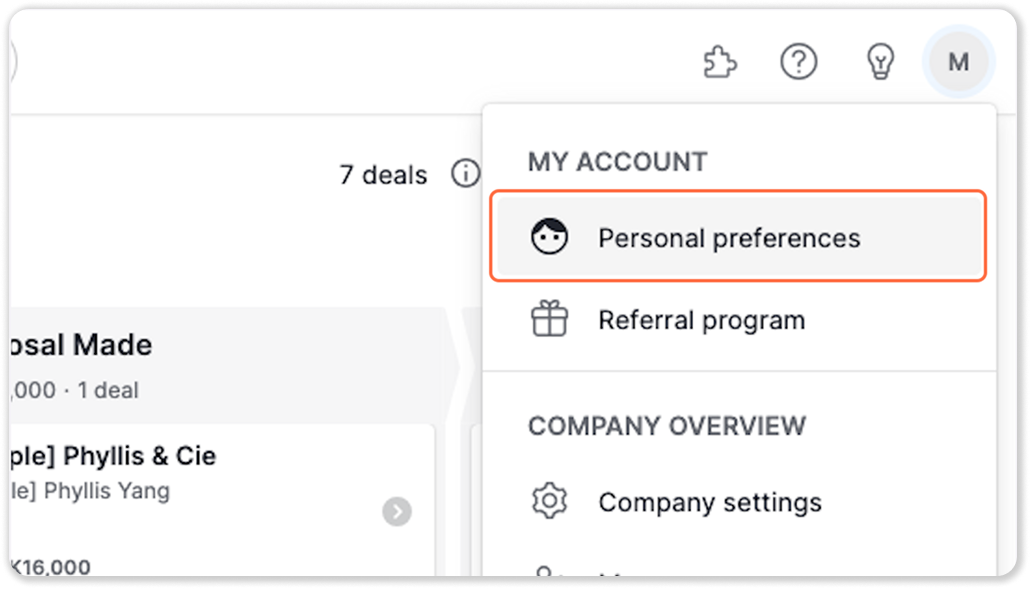
2. Select Personal preferences from the dropdown menu
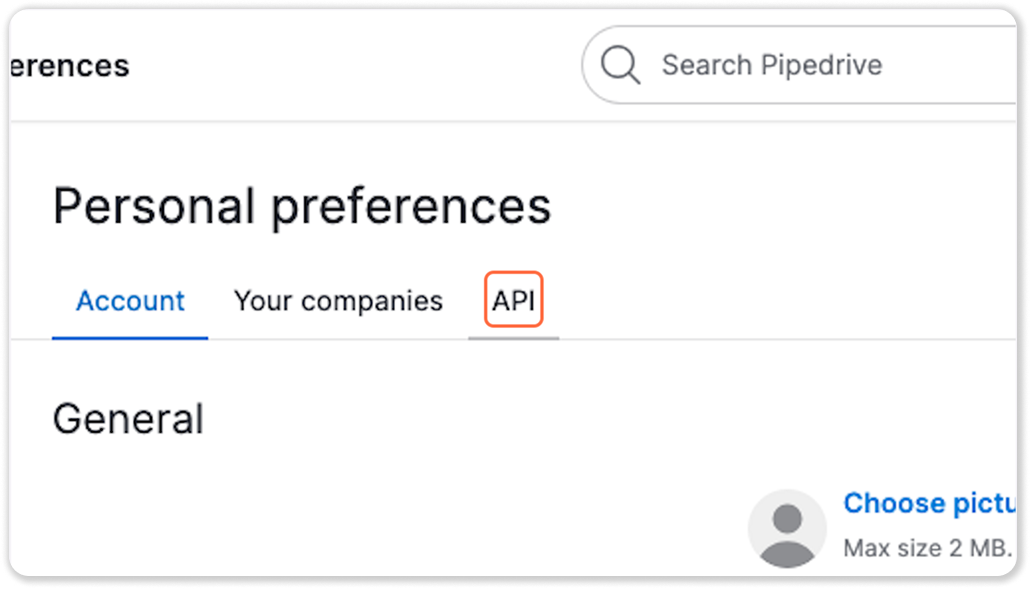
3. Click the API tab
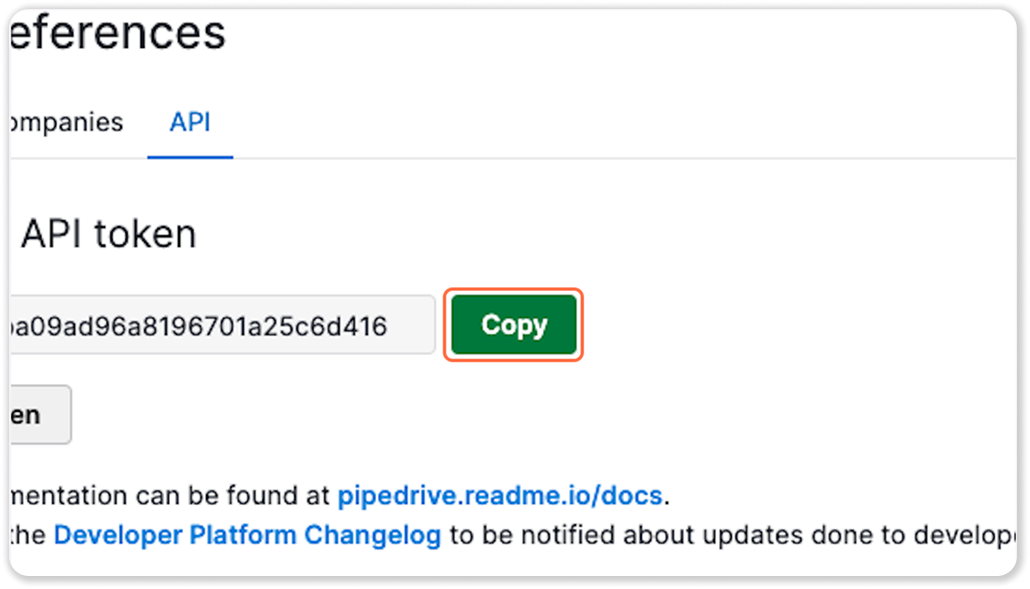
4. Copy your personal API token
Your subdomain is the part before .pipedrive.com in your browser's address bar when you're logged in.
Step 2: Decide which fields to include
We always send the following standard fields when creating a Person in Pipedrive:
- Name
- Phone
- Visible to - controls which users or groups in Pipedrive can see the new contact. By default we set this to entire company (value
3). Let us know if you'd prefer a different visibility setting.
Step 3: Set up custom fields for additional data (optional)
If you want to include extra information — such as the page the visitor came from or the full chat transcript — some setup is needed in Pipedrive first.
Entry page
Since entry page URLs can be quite long, you'll need to create a custom field with the type set to Large text.
To create the field:
- Go to Personal preferences > Data fields
- Select Person as the entity
- Click + Custom field
- Name it something clear, e.g. "Entry page"
- Set the field type to Large text
- Save the field
Then copy the field's API key so we can map to it correctly:
- Go back to Personal preferences > Data fields
- Find your new field and click the ... menu next to it
- Select Copy API key
For more detail on creating and managing custom fields, see Pipedrive's official guide.
Chat transcript
Chat transcripts are by default added to the Notes field on the Person record — no custom field needed. However, if you'd prefer the transcript mapped to a different field, create a custom field for it (we recommend Large text as the field type) and send us the API key for that field the same way as described for entry page above.
Step 4: Share your details with us
Once you have everything, send the following to your Customer Success manager and we'll complete the connection:
- Your Pipedrive subdomain (e.g.
yourcompany.pipedrive.com) - Your personal API token
- Whether you want the entry page included. If yes, include the custom field API key
- Whether you want the chat transcript included in notes
- Any specific visibility preference (we default to entire company)