
Before you start:
Before you follow these steps, be sure to have the following things ready:
- Chat Widget ID or Chat integration script
Option 1: Use our WordPress plugin
The easiest and recommended method. Install and activate our plugin to quickly add the chat to your website.
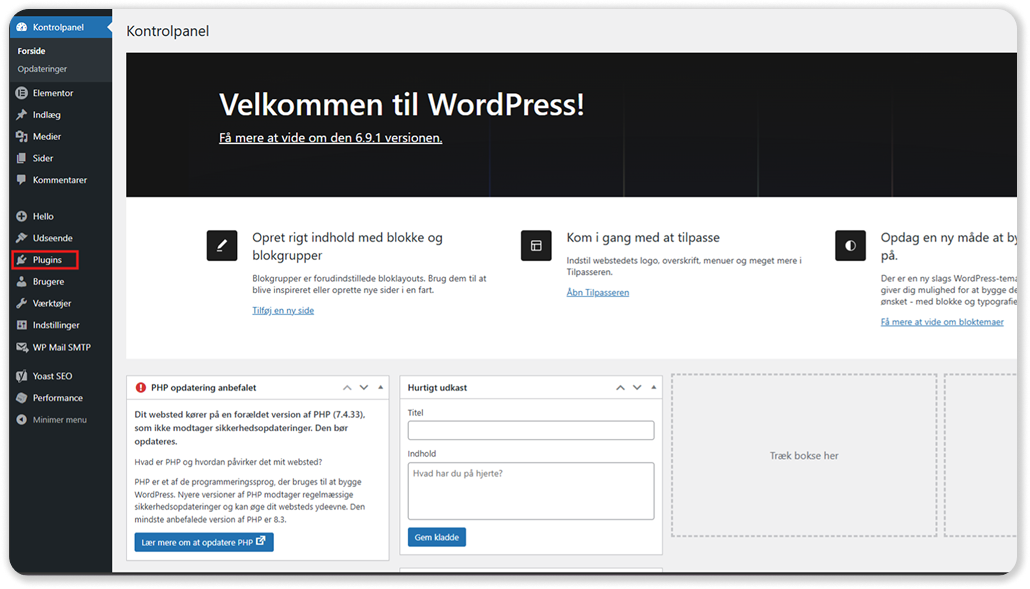
1. On your Wordpress dashboard, go to "Plugins"
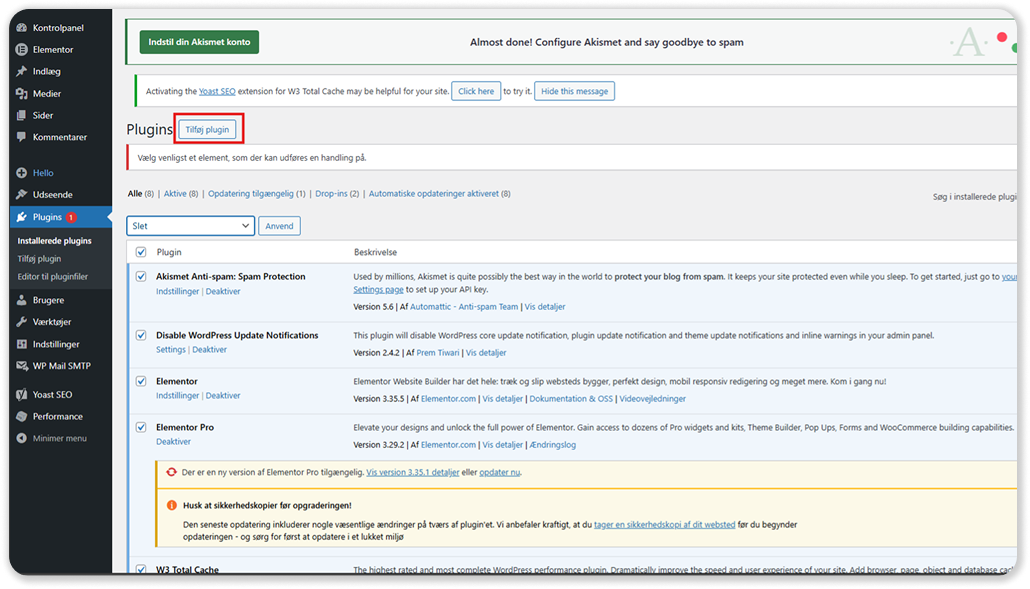
2. Click on "Add plugin"
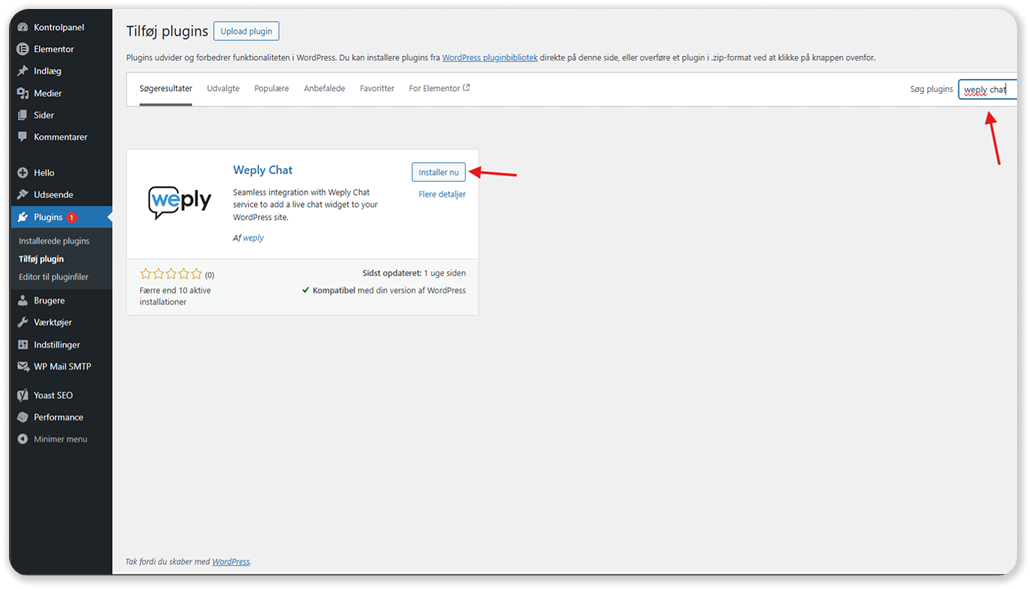
3. Search for "Weply Chat" and click "Install now"
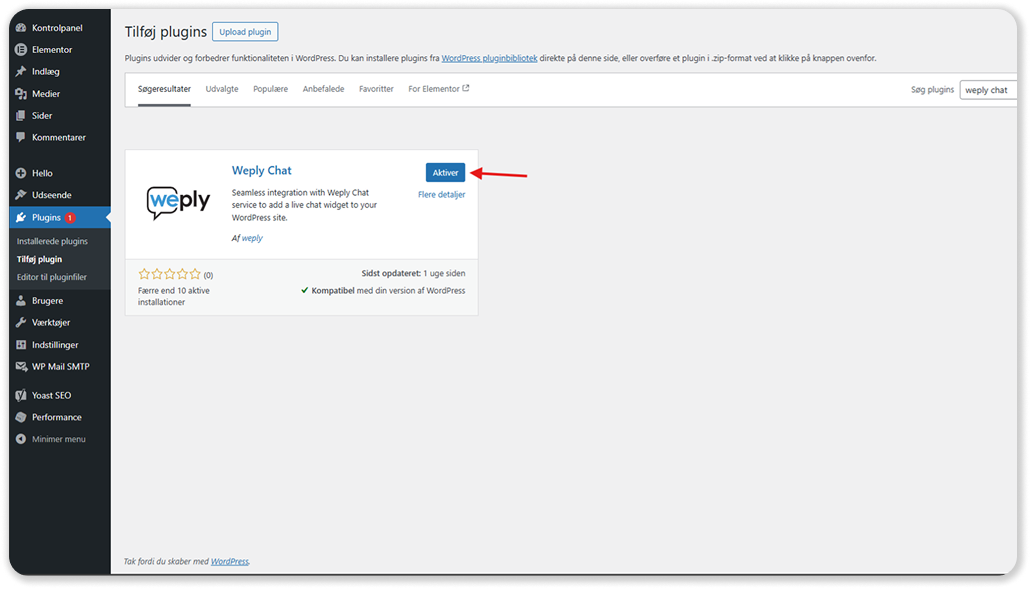
4. Press "Activate"
5. After activation: Navigate to “Weply Chat” menu in the admin sidebar.
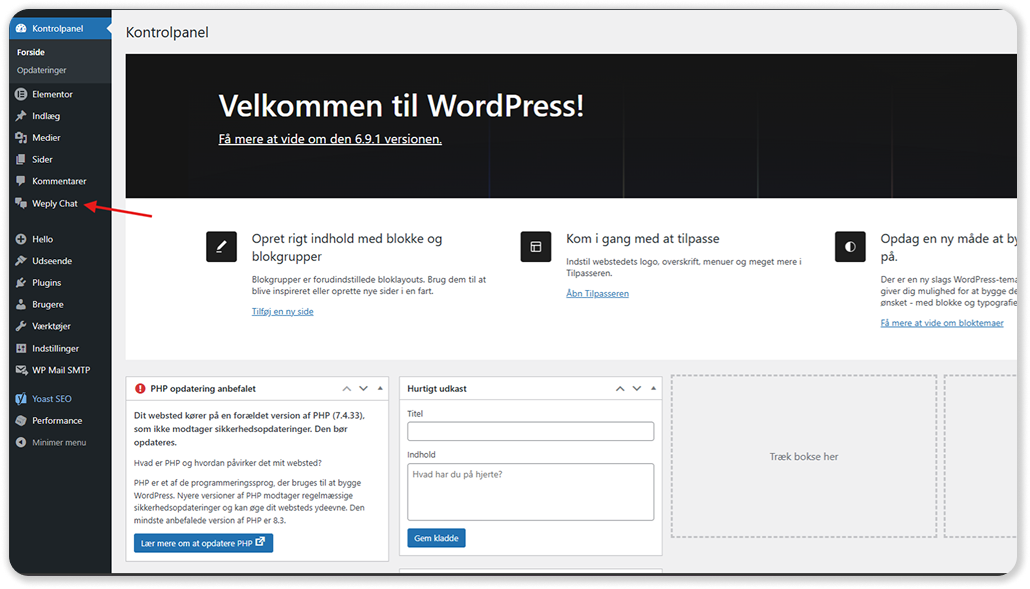
6. Enter your Chat Widget ID from your Weply account dashboard and save the settings.

7. Check that your chat is active on your website.
Option 2: Use an existing WordPress plugin
If you already have a plugin that supports custom script insertion, you can use it to add the chat. If you’re experiencing issues with the standard setup, this is a good alternative. Follow the four steps below to get your chat online.
- Step 1 is to download the plugin WP Code – Insert Headers and Footers. Install and activate the plugin in WordPress by going to Plugins > Add New, then search for WPCode – Insert Headers and Footers. Click Install Now, wait a moment, and then click Activate.
- After activation: In the left-hand menu, you will see a new menu item added by the plugin. It may have different names, such as Code Snippets or Snippets. Hover over it to see more options, then click Header & Footer.
- Paste the script and save it in the top-right corner. Go to the link provided by Weply, where you will have the option to copy the script (JavaScript). Paste the JavaScript you received from Weply into the field at the bottom in WPCode, then click Save in the top-right corner.
- Check that your chat is active on your website.
Option 3: Add your script manually through code
If you are more familiar with WordPress and would like to add the script on your website's source code directly, you will need to create a new function that adds the script to wp_footer to the theme's functions.php file.
Can't see your chat?
- Remember to clear your cache! In some cases, your website may not update immediately and has a 'clear cache' function.
- Browsers also keep a cache of websites. You may need to clear the cache on the browser you're using.
Here are some guides on how to do so: Google, Safari, Microsoft Edge - Did you install the chat onto a staging server? Maybe the chat isn't set up to be shown on your staging server due to URL restrictions. In that case, contact support.
- If none of the above worked, contact support.
What's next?
- Make sure that you are getting email notifications from Weply so you do not miss any potential customers.
Here's how you set that up on Apple iOS and Android. - Push chat events to your Google Analytics account to get a better overview of the customer journey.